AI Golden Dragon with Shining PBR Armor
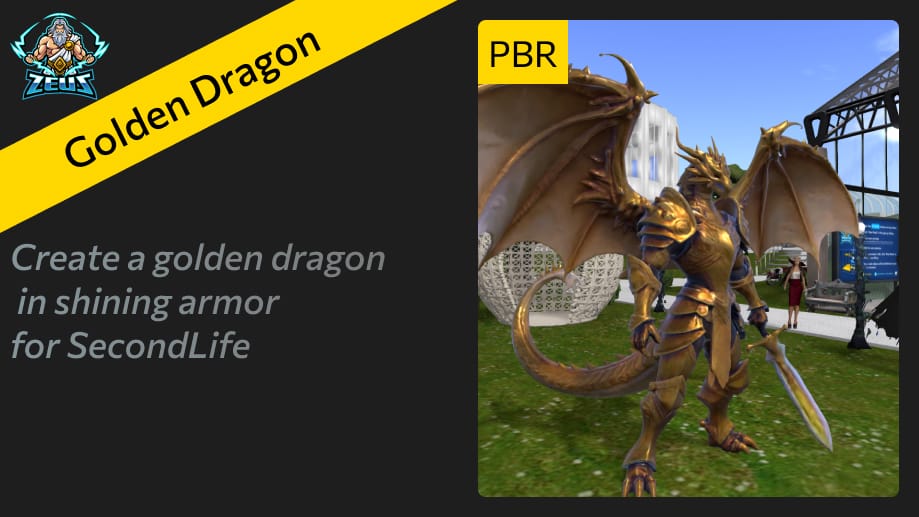
Create a golden dragon in shining armor for Second Life, with the armor generated using PBR materials for realistic reflections and metallic shine. MeshZEUS models can be generated with PBR materials.
Step 1: Write a Detailed Prompt for Shining Metallic Armor
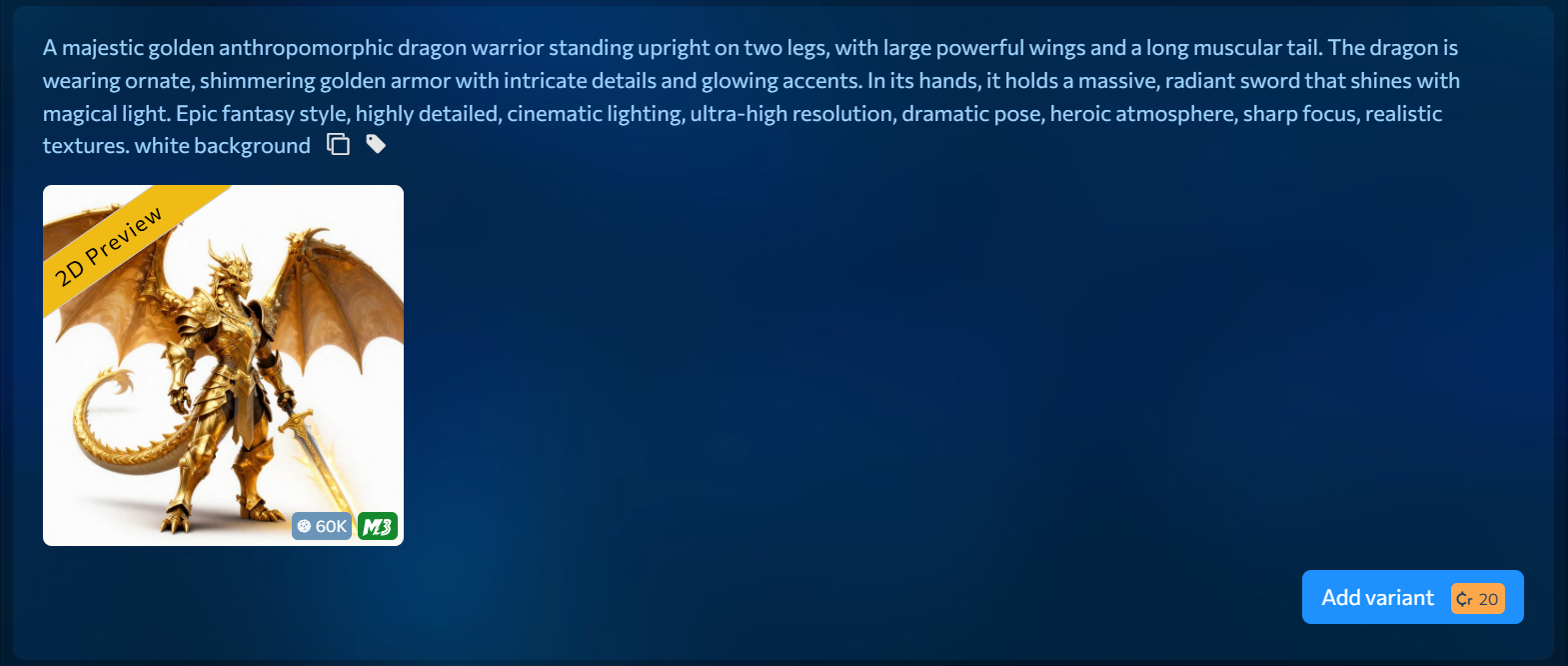
To achieve a convincing result, write a detailed prompt that clearly describes the armor’s appearance. Use words that emphasize its shiny, reflective metallic surface, such as polished gold, reflective metal, glowing highlights, mirror-like reflections, and bright metallic shine. Describing the armor as ornate, engraved, or highly polished can also help the AI generate a more impressive and realistic result. The more specific your prompt is, the more striking and detailed the final dragon will look.
Step 2: Generate the 3D Model
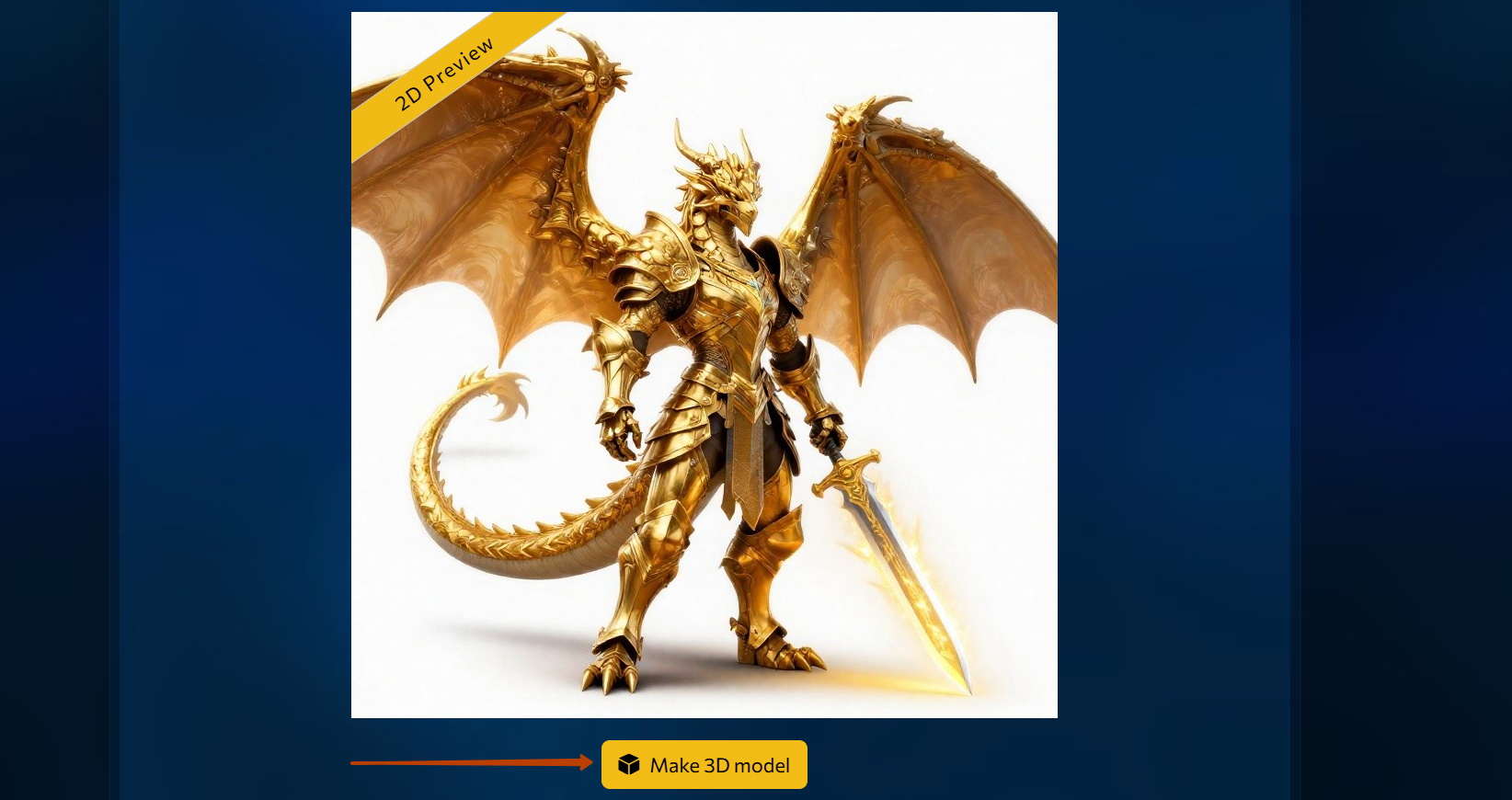
Go to the 2D preview page and review the generated image. If you are satisfied with the preview, click the “Make 3D Model” button to create the 3D version.
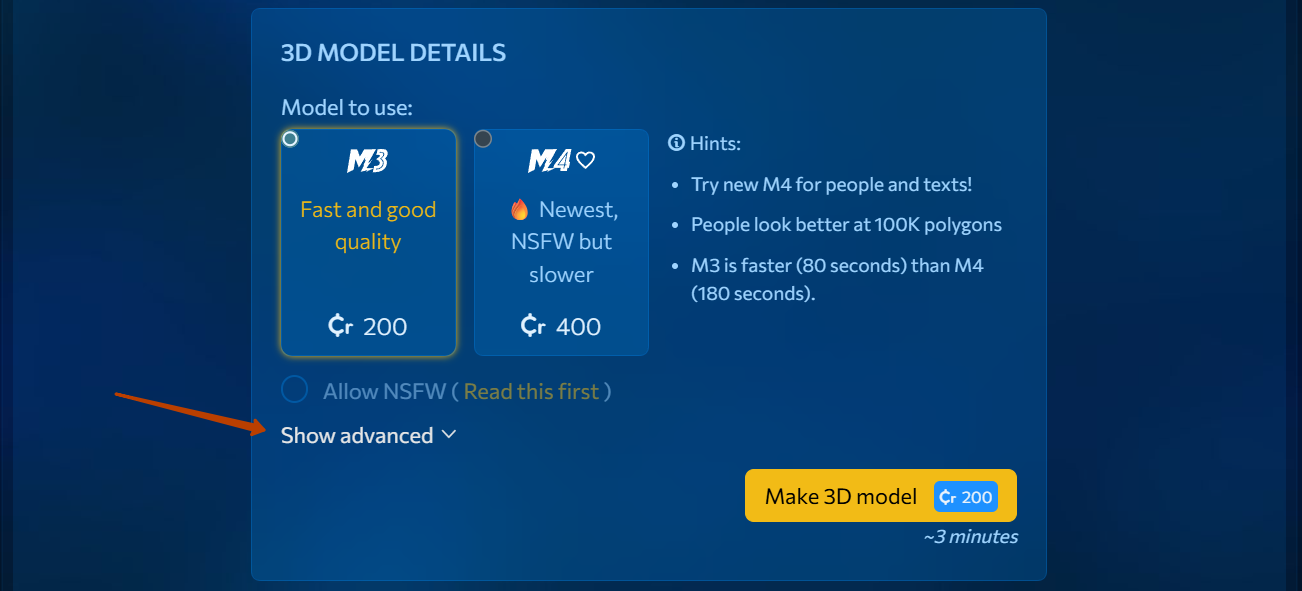
Then select the neural network model to generate the object (M3 or M4) and click the “Show Advanced” link.
Check the “Generate PBR Textures” option and click the “Make 3D Model” button.
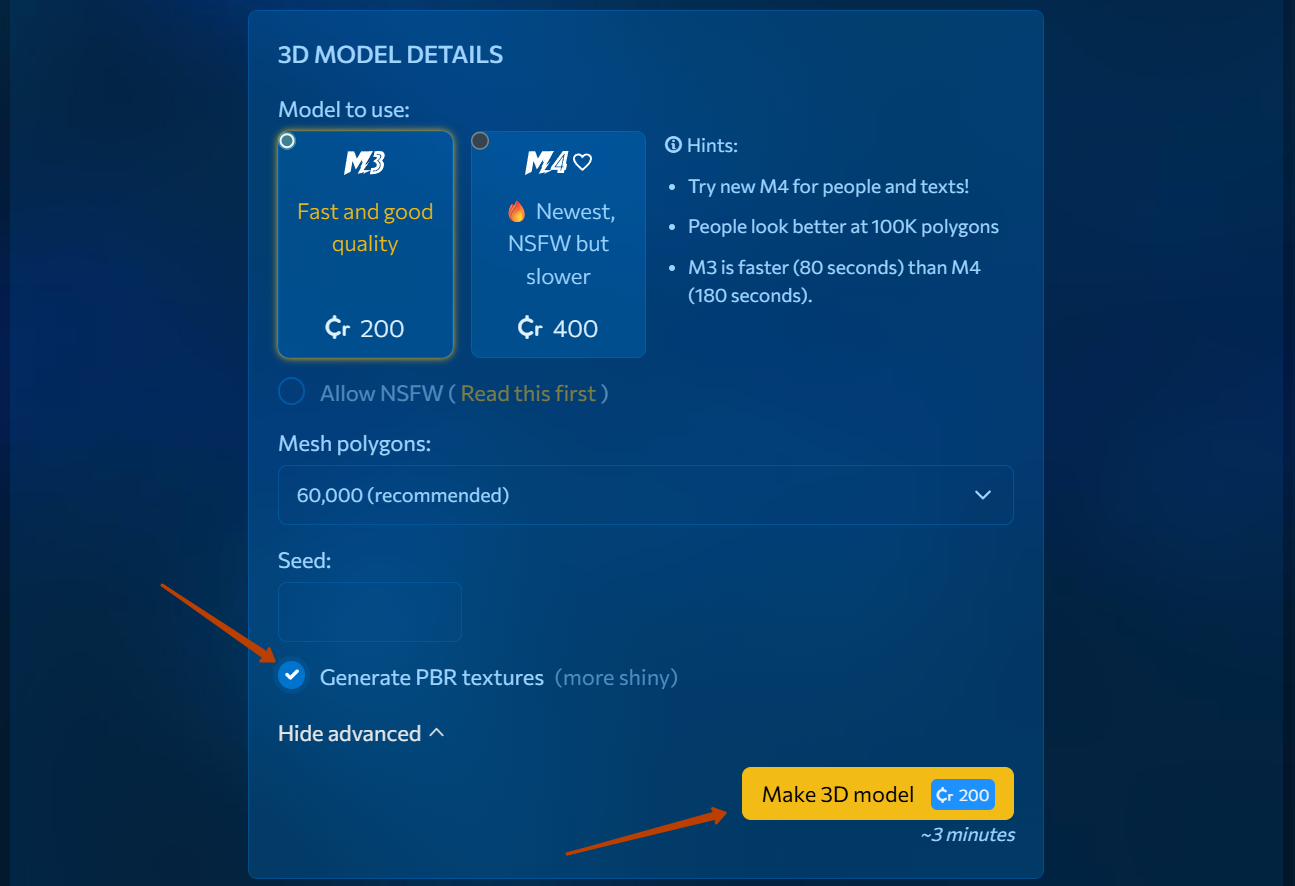
As a result, MeshZEUS will generate a shiny 3D model.
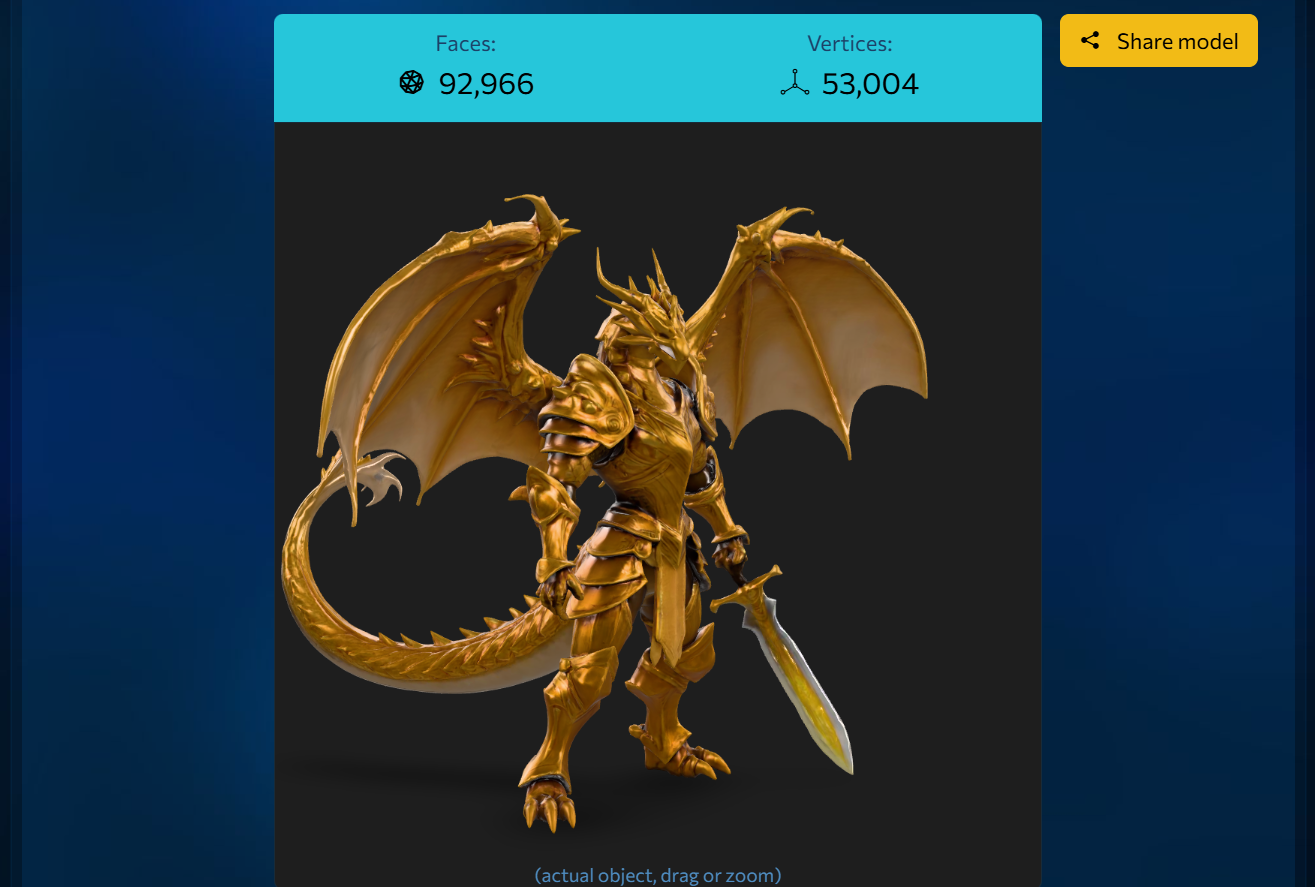
Follow the link to take a closer look at this 3D object and rotate it to view it from different angles.

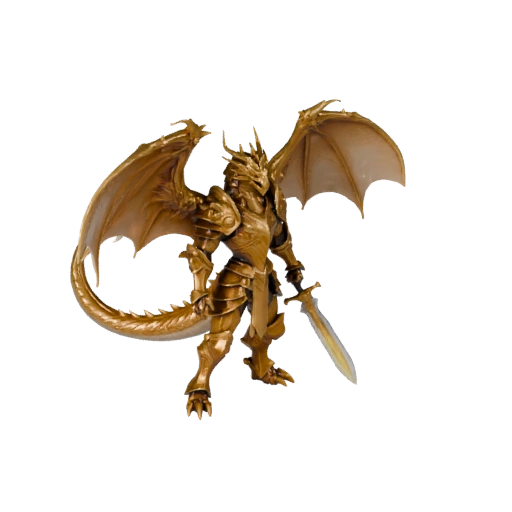
Step 3: Upload to Second Life
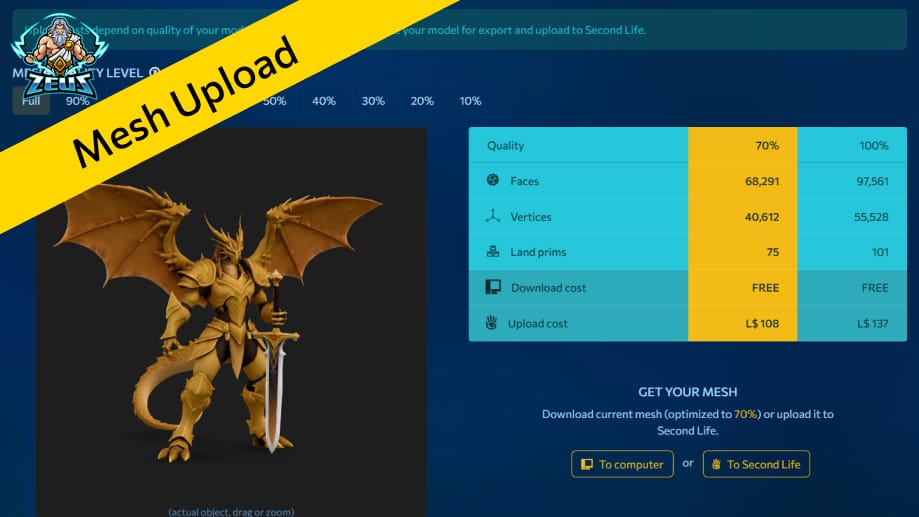
Then you need to download the model to your computer.
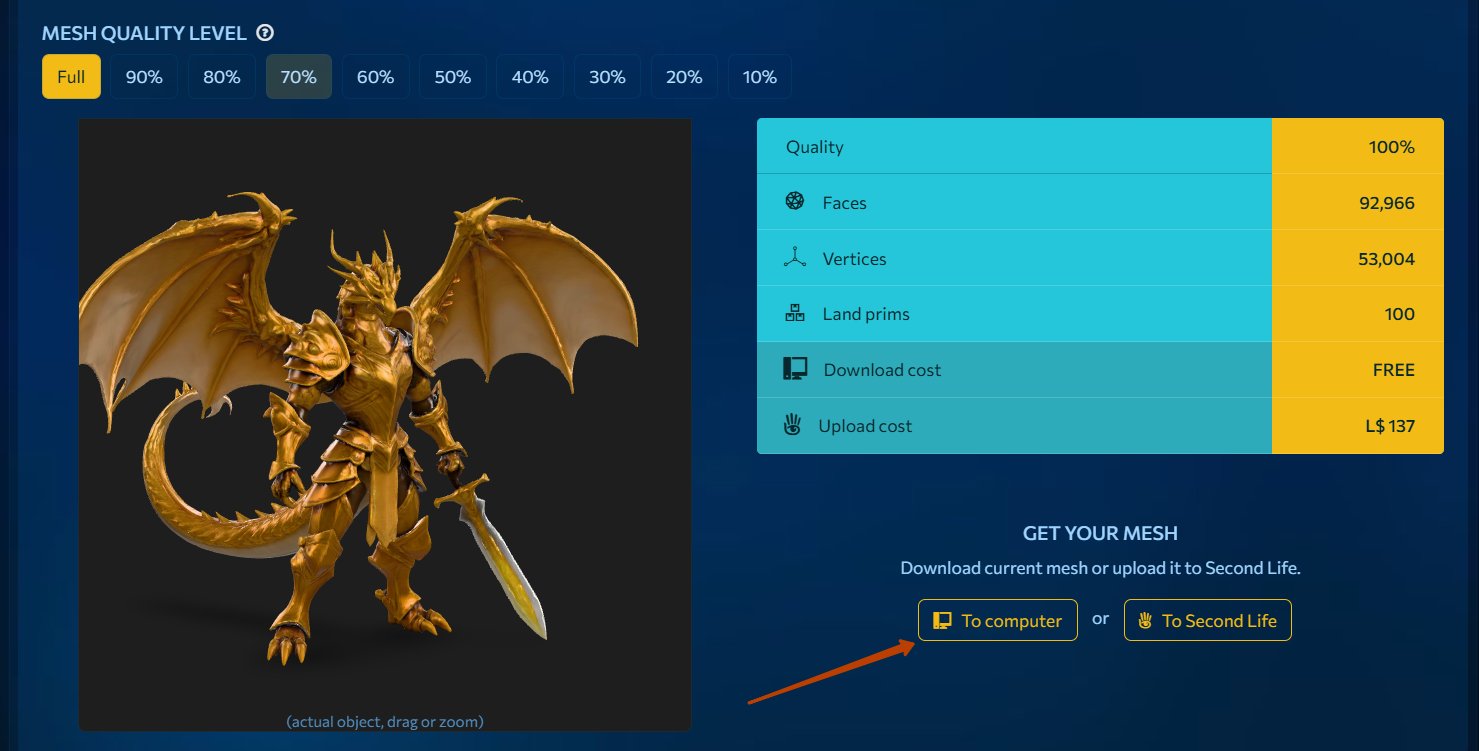
PBR textures are uploaded separately from the mesh model. Once your mesh is uploaded, click Build > Upload > Material in the main navigation menu.
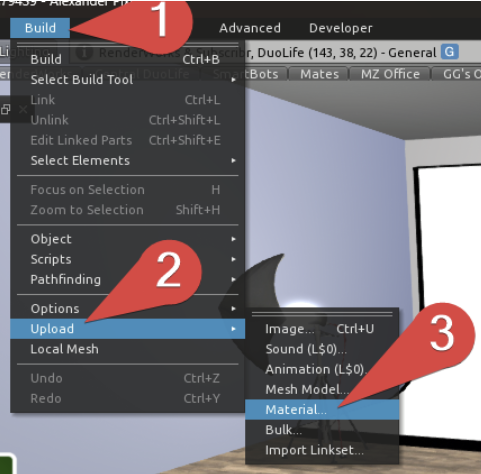
Choose the .glb model file, and your materials will show in the material editor window. Here, textures can be tweaked if needed. You can also disable certain textures by clicking it and choosing ‘None’.
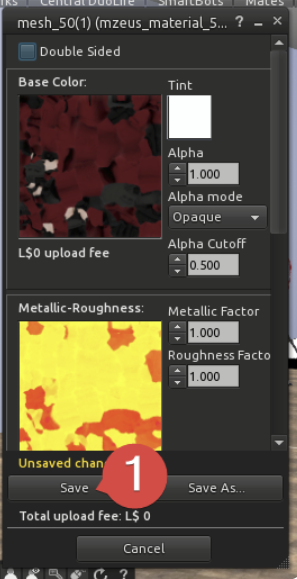
Depending on the resolution and number of textures you are uploading, the upload cost can vary from 10L (for a single lower-res texture) to 200L (for all 4 high-res textures).
Applying PBR Materials
Applying the textures is easy.
- Click the texture tab.
- Click the PBR tab, then click the material box.
- Click the uploaded material.
- Click ‘OK’ to apply the material.
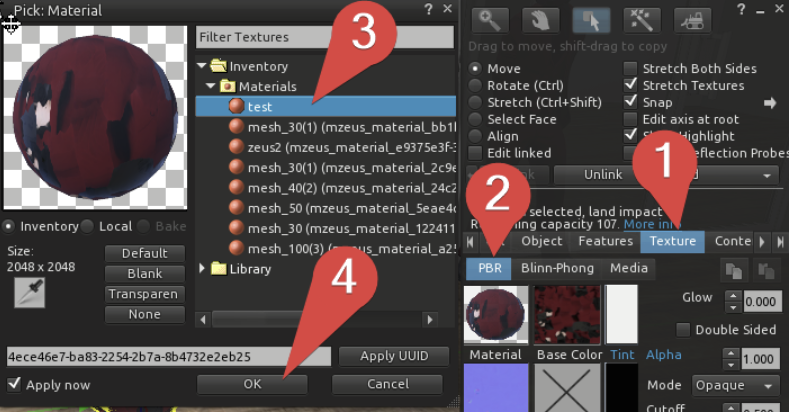
This way, you will get an object with a shiny surface.
Watch our video featuring this dragon.
Sign up now and get L$1,000 in free credits!
Welcome to MeshZEUS! The first and best AI mesh generator for Second Life!
 Discord
 PrimFeed